


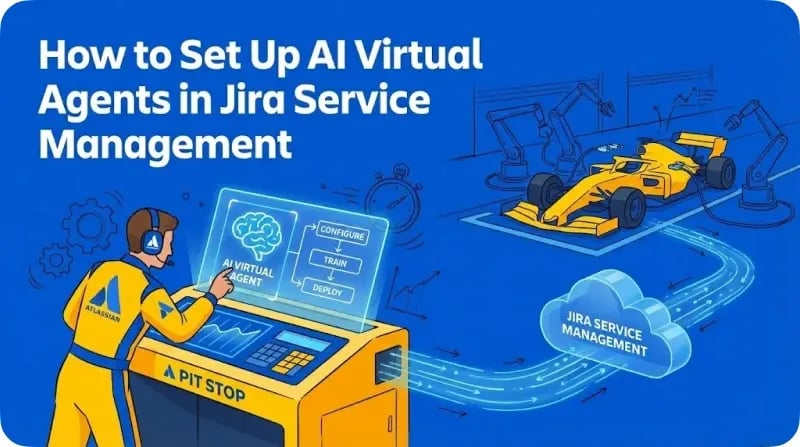
Virtual service agents in Jira Service Management handle routine requests so your team can focus on complex issues. According to Atlassian's engineering blog, organisations using JSM's virtual agent see a 50% increase in resolution rate through automation, with nearly half of all chat queries resolved by AI.
This guide walks through the setup process from initial configuration to launch. For broader context on how AI is transforming ITSM, see our pillar guide on ITSM trends in 2026.
What JSM Virtual Agents Can Do
Before diving into configuration, understanding the virtual agent's capabilities helps you plan effectively.
Answering Questions from Your Knowledge Base
The virtual agent uses Atlassian Intelligence to search your linked Confluence spaces or JSM's native knowledge base. When an employee asks a question, the agent retrieves relevant articles and provides answers in a conversational format.
Automating Actions Through Intent Flows
Beyond answering questions, the virtual agent can execute actions. Password resets, software access requests, and hardware procurement can all be automated through intent flows. According to Atlassian's product guide, intent flows use web requests to trigger automations, granting software access or creating tickets with pre-gathered information.
Supporting Multiple Channels
The virtual agent operates across your help centre portal, Slack, Microsoft Teams, and email. Employees get help where they already work without navigating to separate systems.
Prerequisites Before You Start
Successful setup requires a few things in place first.
Confirm Your JSM Plan
Virtual service agents are available on JSM Premium and Enterprise plans. Premium includes 1,000 assisted conversations monthly at no additional cost. If you're on the Standard or Free plan, you'll need to upgrade to access this feature.
Activate Atlassian Intelligence
An organisation admin must activate Atlassian Intelligence in your Atlassian Administration settings. Navigate to admin.atlassian.com, select your organisation, and enable Atlassian Intelligence for Jira Service Management.
Prepare Your Knowledge Base
If you plan to use AI answers, you need a linked knowledge base. This can be Confluence spaces or JSM's native knowledge base. The knowledge base space must be set to "All logged-in users" under viewing permissions so the virtual agent can access the content.
Step-by-Step Setup Guide
Step 1: Access Virtual Agent Settings
Navigate to your JSM project. Select Project settings from the sidebar, then Virtual service agent. This opens the configuration area where you'll set up your virtual agent.
Step 2: Set Your Default Request Type
Choose a default request type that the agent will use when it cannot resolve a request. When the virtual agent escalates to a human, it creates a ticket using this request type. Select something general like "General IT Support" or "Service Request" that your team monitors regularly.
Step 3: Enable AI Answers
For organisations with existing knowledge bases, AI answers provide the fastest path to value.
Select Turn on AI answers in the virtual agent settings. Link your Confluence spaces or JSM knowledge base. The virtual agent will search these sources when employees ask questions. According to Atlassian Support documentation, once AI answers are enabled and at least one knowledge base is linked, the virtual agent goes live in your portal automatically.
Step 4: Create Intent Flows
Intent flows handle specific request types with structured conversations.
Select Create an intent. Give it a name (e.g., "Software Access Request") and description. Add training phrases that employees might use when making this type of request. Build the conversation flow using the visual editor.
Intent flows support several step types:
- Send message: Display information or instructions to the employee
- Ask for information: Collect data needed to process the request
- Change request type: Override the default request type for specific intents
- Web request: Trigger external automations (e.g., provisioning software access)
According to Atlassian's virtual agent guide, JSM provides pre-built intent templates based on common IT and HR issues. These templates accelerate setup by providing starting configurations you can customise.
Step 5: Test Before Launch
New intents default to Test status, meaning they're only active in your test channel. Use the test option in the virtual agent settings to verify training phrase quality and conversation flows before activating for employees.
When testing, check that:
- Training phrases trigger the correct intent
- Conversation flows collect the right information
- Web requests execute properly
- Escalation to human agents works as expected
Step 6: Go Live
Once testing is complete, change the intent status from Test to Live. The virtual agent will begin responding to employees in your configured channels.
Connecting to Slack
Many organisations use Slack as their primary communication tool. The virtual agent integrates directly with Slack through Atlassian Assist.
Setting Up Slack Channels
According to Atlassian's Slack integration guide, you need two channel types:
Agent channel: A private channel where your IT team works on requests. Agents can assign, triage, and comment on tickets here.
Request channels: Public or private channels where employees ask for help. The virtual agent responds to queries in these channels.
Installation Steps
In Slack, create or select your agent channel. Type /invite and add Atlassian Assist. When prompted, select your JSM project. For request channels, go to the channel and send /add as a message. Select Add apps to this channel, search for Assist, and select Add. Choose Request channel when prompted and link it to your JSM project.
Common Use Cases for Australian Teams
These request types work well as starting points for virtual agent automation.
IT Support Requests
Password resets, VPN setup, software access requests, and hardware issues. These high-volume, repetitive requests benefit most from automation.
HR and People Operations
Leave policy questions, benefits enquiries, onboarding workflows, and expense policy clarifications. HR teams using JSM can deploy virtual agents to handle routine employee questions.
Facilities and Office Services
Meeting room bookings, parking requests, building access issues, and equipment requisitions. Facilities teams handle many repetitive requests that virtual agents address efficiently.
Tips for Success
Start with 5-10 High-Volume Request Types
Analyse your ticket data to identify the most common requests. Build intents for these first. A focused implementation that handles your top request types delivers more value than a broad implementation that handles many types poorly.
Keep Knowledge Articles Clear and Current
AI answers are only as good as your knowledge base. Review articles for clarity, update outdated content, and structure information so the virtual agent can extract relevant answers.
Monitor the Analytics Dashboard
JSM provides metrics on resolution rate, matched rate (percentage of conversations matched to an intent), and customer satisfaction scores. Use these to identify where the virtual agent struggles and where your knowledge base has gaps.
Use AI Suggestions to Fill Gaps
The virtual agent identifies knowledge gaps based on questions it cannot answer. Review these suggestions regularly and create new articles to improve coverage over time.
Measuring Success
Track these metrics to evaluate your virtual agent's performance:
Deflection rate: Percentage of requests resolved without human intervention. Atlassian reports that organisations using virtual agents see significant ticket deflection, freeing agents to focus on complex issues.
Resolution rate: Percentage of virtual agent conversations that reach successful resolution.
Customer satisfaction (CSAT): Employee satisfaction with virtual agent interactions. JSM collects this automatically when conversations end.
Mean time to resolution: How quickly issues are resolved compared to human-only support.
Next Steps
Once your virtual agent handles basic requests, expand its capabilities:
- Add more intents based on ticket analysis
- Connect additional Slack channels or Teams
- Implement web requests for automated provisioning
- Integrate with identity management systems for password resets
For guidance on using AI for incident management specifically, see our guide on incident management automation with JSM.
How Design Industries Can Help
Configuring virtual agents for optimal performance requires understanding both the technology and your organisation's specific workflows. Design Industries helps Australian organisations implement JSM virtual agents that deliver measurable value from day one.
We handle knowledge base preparation, intent configuration, Slack integration, and ongoing optimisation. Our team ensures your virtual agent handles the requests that matter most to your organisation.
Ready to deploy AI-powered support? Contact us to discuss your virtual agent implementation.
Frequently Asked Questions
Do I need coding skills to set up JSM virtual agents?
No. JSM's virtual agent uses a visual, low-code interface. You create intents and conversation flows through drag-and-drop tools. Web requests for automations may require some technical knowledge, but basic setups need no coding.
How long does setup take?
Basic AI answers can be enabled in minutes if you have an existing knowledge base. Creating custom intent flows takes longer, typically a few hours per intent. Most organisations can have a functional virtual agent within one to two weeks.
What happens when the virtual agent cannot help?
The agent escalates to your human team by creating a ticket in JSM. All conversation context transfers to the ticket, so agents have full history when they pick up the request.
Can the virtual agent work in languages other than English?
JSM virtual agents now support 20+ languages, making them suitable for global organisations. Check Atlassian's documentation for the current list of supported languages.
How much does the virtual agent cost?
The virtual agent is included in JSM Premium and Enterprise plans. Premium includes 1,000 assisted conversations monthly. Additional conversations cost $0.30 USD each with volume discounts available.